發表文章

目前顯示的是有「Drone development」標籤的文章

PX4 Flight Log Analysis

圖片
1.  Flight review 2.  pyulog 3. pyFLightAnalysis 4. FlightPLot Reference: [1]  https://logs.px4.io/ [2]  https://github.com/PX4/pyulog [3]  https://github.com/Marxlp/pyFlightAnalysis [4]  https://github.com/PX4/FlightPlot

Auto flight using a Qualcomm Snapdragon Flight platform (7) - Visual inertial odometry (VIO)

圖片
1. Sensor calibration (1) snav_calibration_manager (2) Navigator SDK (3) RC 2. Configure the VIO parameters and active it (1) Enable VIO in the snav_params.xml (/usr/lib/rfsa/adsp/snav_params.xml) <pos_hold_mode_params>    <param name="enable_vio" value="1"/>    <param name="enable_gps" value="0"/>    <param name="enable_dft" value="0"/> </pos_hold_mode_params> (2)  Configure Qualcomm Navigator to use VIO $ sudo /etc/snav/configure_vio.sh $ snav_dft_vio_app ( *mv_1.1.9 should be installed. ) (3) Check the VIO positioning result $ snav_inspector 3. Record  (1) Machine vision logs Setting the enable_srw_writer parameter in /etc/snav/app_params.snav_dft_vio_app.excelsior to 1 .  MV sequences are logged to /data/logs/snav/mv_sequence Copy data to the host (ex: adb pull /data/logs/snav/mv_sequence/snav_mv_seq_00018/snav_dft_vio_camera/ '/home/shomin/images_...

Auto flight using a Qualcomm Snapdragon Flight platform (6) - Qualcomm Navigator API examples

圖片
1. Installation $ git clone https://github.com/ATLFlight/snav_api_examples.git $ adb shell "mkdir -p /home/linaro/examples" $ adb push snav_api_examples /home/linaro/examples $ adb shell $ make     2. Running the examples - basic $ start snav (Blue LED will blink) $ ./snav_read_attitude (prints the roll, pitch, and yaw angles) $ ./snav_send_esc_commands_keybaord (spin the motors, and control the motor signals through keyboard command) 3. Running the example - advanced (Using Qualcomm Navigator simulator) $ adb shell $ cd /home/linaro $ git clone https://github.com/ATLFlight/snav_fci.git (target should be switched to station mode beforehand) $ cd snav_fci $ mkdir build $ cd build $ cmake .. $ make -j4 (Open a new command window) $ sudo stop snav $ sudo snav -w 1000 (start simulation environment) (Open a new command window) $ snav_inspector (For observe the live simulated results) $ cd /home/linaro/snav_fci/build/bin $ ./XXX (XXX ...

Auto flight using a Qualcomm Snapdragon Flight platform (4-2) - MV SDK Camera streaming

1. Setting (1) Stop Snav $ sudo stop snav (2) Run imu_app in the background $ imu_app & 2. Capture images (1)  Create a saving images folder under /home/linaro (Default directory) $ mkdir -p /home/linaro (2) Capture cd ~/ mvCapture -r (hi-res camera) mvCapture -s (stereo camera) mvCapture -o (optical flow camera) 3. Copy image to the host $ adb pull /home/linaro/Record/monoCamera/frame_00000.grayscale.pgm <hostdirectory>

Auto flight using a Qualcomm Snapdragon Flight platform (5) - Navigator SDK

圖片
0. Licensing (IMPORTANCE!) $ adb push snapdragon-flight-license.bin /opt/qcom-licenses/ $ adb shell sync 1. Instllation $ adb shell mkdir -p /data/bin $ adb push snav_1.2.59_8x96.ipk /data/bin $ adb shell opkg install /data/bin/snav_1.2.59_8x96.ipk $ adb shell /etc/snav/enable_snav.sh 2. Configuring Runtime Parameters and run $ vi /usr/lib/rfsa/adsp/200qc_runtime_params.xml Changes configure the hardware for a 3s Lipo Battery. $ adb shell ln -s /usr/lib/rfsa/adsp/200qc_runtime_params.xml /usr/lib/rfsa/adsp/snav_params.xml $ adb shell start snav 3. Sensor Calibration $ cd ~/ snav_calibration_manager -s (Static calibration) $ cd ~/ snav_calibration_manager -t 5 (Thermal calibration) * PX4 is not supported on the 820Pro dev kit. Reference: [1]  https://tech.intrinsyc.com/projects/qualcomm-flight-pro-development-kit/wiki/navigator_sdk [2] Qualcomm® Navigator™ SDK User Guide for APQ8x96 (80-P4698-22 Rev. A ), January 4, 2019

Auto flight using a Qualcomm Snapdragon Flight platform (4-1) - ROS Camera streaming

圖片
1. Build the camera streaming application within Docker ROS (1) Create a new workspace cd $HOME (Docker home: refer to docker container ) mkdir -p ros/src && cd ros/src catkin_init_workspace cd ../ source /opt/ros/indigo/setup.bash (Important!) catkin_make source $HOME/ros/devel/setup.bash (2) Clone the example repo on github cd $HOME/ros/src git clone https://github.com/ATLFlight/snap_cam_ros.git git clone https://github.com/ATLFlight/snap_msgs.git cd snap_cam_ros (The "mirrored" directory on the host) git submodule init (Do this on the host) git submodule update  (Do this on the host) (3) Build cd $HOME/ros/ catkin_make -DCMAKE_BUILD_TYPE=Release -DQC_SOC_TARGET=APQ8096 install 2. Flight pro configuration (1) Archive the contents of prebuilt ROS folder on the development machine and push to the Flight Pro platform. tar -cvzf ros.tgz ros/ adb shell mkdir -p /home/username/ adb push ros.tgz /home/ username adb shell tar -xvzf /home/ user...

Auto flight using a Qualcomm Snapdragon Flight platform (3) - WiFi mode switching

There are two WiFi mode available, they could be switched according to the following operations: 1. Access Point Mode Configuration(default): adb shell cd /data/misc/wifi/ vi wpa_supplicant.conf *SSID - QsoftAP *Password 1234567890 (psk) echo softap > wlan_mode Reboot 2. Station Mode Configuration: adb shell cd /data/misc/wifi/ vi wpa_supplicant.conf *Modify the wpa supplicant settings to match the WiFi network you wish to connect. echo station > wlan_mode Reboot *SSH over Wi-Fi: $ ssh root@<IP address of target> password: oelinux123

Auto flight using a Qualcomm Snapdragon Flight platform (2) - docker container

圖片
1. Install Docker on the host development machine [1], and then test the installation. (1) Check version docker version (2) Add user to docker group sudo groupadd docker sudo usermod -a -G docker {username} 2. Download Flight Pro Docker Image [2] 3. Import Flight Pro Docker Image docker load < excelsior-arm-sdk-sfpro_docker.tar docker images 4. Setup a Docker workspace cd $HOME  mkdir -p docker/flight_pro  cp ~/Downloads/run_docker.sh $HOME/docker/flight_pro  export SPRINT="null"  ./run_docker.sh atlflight/excelsior-arm-sdk-sfpro_docker   *This will launch you into a Docker bash shell running the same variant of Linux as the Flight Pro hardware as shown in the following picture. This script also creates a sdk_home directory in your docker workspace on your Host machine. Any changes you make within Docker $HOME will be mirrored to the sdk_home host workspace directory. 5. Build & test (1) download the SDKHelloWorld.zi...

Auto flight using a Qualcomm Snapdragon Flight platform (1) - Installation

圖片
0. SD Card Recovery (1) Download the singleimage.bin recovery image and connect an 8Gb microSD card to your Linux box. (2) Determine the /dev/sd* device corresponding to your SD card. ex: fdisk -l (3) Flash the image to the SD card: sudo dd if=singleimage.bin of=<SD card device root> ex: sudo dd if=singleimage.bin of=/dev/sdb1 (4) Power down your Flight Pro hardware then insert the microSD into the SD Card slot and power it back on. 0. Install  ADB  and make sure it works ( a microusb cable is needed! ) (1) Installation apt-get install android-tools-adb android-tools-fastboot (2) Check (connect platform with a micro usb cable) adb devices adb shell 1. Upgrading the BSP (board support package) *Solution for the error message: insufficient permissions for device Add the following lines in jflash.sh file before modelIdApq=$( adb shell getprop ro.product.name | tr -d '[:space:]' ): sudo adb kill-server sudo adb start-server ...

How to add user defined module in PX4

圖片
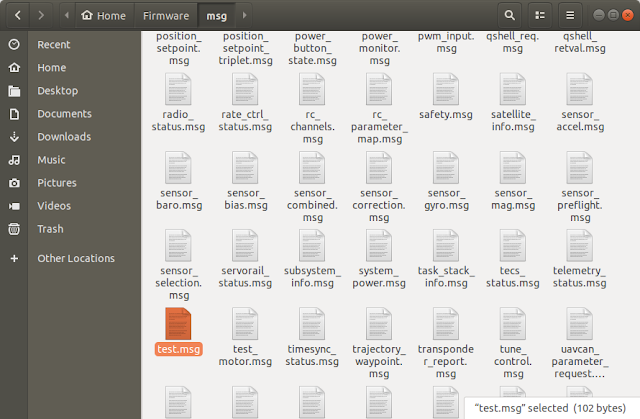
Step1: Create a ORB topic (~/Firmware/msg/) Step2: Add user defined topic in the CMakeList.txt (~/Firmware/msg/) Step3: Build the firmware [1] , and you will find a corresponding head file (~/Firmware/build/px4_fmu-v3_default/uORB/topics) Step4: Create user defined modules with CMakeLIst.txt and source code (~FIrmware/src/modules) Step5: Follow the px4_add_module.cmake to write your CMakeList.txt in Step4 Step6: FInd your board's default.cmake [2] Step7: Add your module name in the default.cmake (~Firmware/boards/px4/fmu-v3) Step8: build and upload your firmware [1] Step9-1: Test your function using QGroundCOntrol mavlink console Step9-2: Test your function using QGroundCOntrol mavlink console * The board I am using is Pixhawk2.1 cube. * You should have some background knowledge about PX4 uORB topic before doing these things. Reference: [1] Building PX4 Software [2] Flight Controller Configuration File Layouttml

Useful PX4 Parameters

1. For setting companion link SYS_COMPANION (Before ver. 1.9.0) MAV_0_CONFIG, MAV_0_MODE (After ver. 1.9.0) 2. EKF2 configuration EKF2_AID_MASK EKF2_HGT_MODE EKF2_EV_DELAY (Reduce this parameter if high rate external vision is available) EKF2_EV_POS_X, EKF2_EV_POS_Y, EKF2_EV_POS_Z 3. Offboard mode parameters ( The vehicle will exit the mode if target setpoints are not received at a rate of > 2Hz ) COM_OBL_RC_ACT (Default: position mode, I set land mode) COM_OBL_ACT COM_OF_LOSS_T 4. Position loss failsafe COM_POSCTL_NAVL 5. Land mode MPC_LAND_SPEED COM_DISARM_LAND: Time-out for auto disarm after landing. (Default: 0, I set 3.) 6. TBD Reference: [1]  https://dev.px4.io/en/advanced/parameter_reference.html [2]  https://dev.px4.io/en/ros/external_position_estimation.html#tuning-EKF2_EV_DELAY [3]  https://docs.px4.io/en/config/safety.html#qgc_safety_setup

Further setup and tuning for a high-speed drone

圖片
Configuration:  The minimal configuration is to use only a gyro and accelerometer sensor. Considering the  electromagnetic interference, disable the magnetometer . Make sure to balance the propellers . [2] Make sure that the center of gravity is as close as possible to the center of thrust . Choose Generic 250 Racer airframe in QGC. Switch the estimator to local_position_estimator if no external position available. (ex: GPS, camera, etc.) Make sure to calibrate the ESCs. Control latency: Enable SYS_FMU_TASK to reduce latency. Disable SYS_USE_IO and attach the motors to the AUX pins instead. Enable One-Shot PWM output signal to reduce latency ( PWM_RATE =0) Filter tuning: Tune the low-pass filter on the gyro sensor data:  IMU_GYRO_CUTOFF . Tune the low-pass filter on the D-term:  MC_DTERM_CUTOFF . Step1: Active  high-rate logging profile ( SDLOG_PROFILE  parameter) Step2: T une the gyro filter  IMU_GYRO_CUTOFF ...

Advanced parameters tuning for evaluating the control performance

圖片
Definition: The PX4 position controller  consists of an outer   P   position-control loop and an inner   PID  velocity-control loop as shown in the following figure.  Usually in PX4,   position-control  represents the case where both loops are active while  velocity-control  refers to the case when only the velocity control loop is in use. Multicopter position controller [1] Here are some parameters you can set for realizing better control performance [3]. Make sure you have finished the basic PID tuning before tuning the parameters mentioned in this article. MPC_HOLD_DZ:   Deadzone of sticks where position hold is enabled. MPC_ACC_HOR_MAX :   Maximum horizontal acceleration for auto mode and for manual mode. MPC_ACC_HOR:  Acceleration for auto and for manual. MPC_DEC_HOR_SLOW:  Slow horizontal manual deceleration for manual mode. MPC_ACC_UP_MAX:  Maximum vertical acceleration in velo...

Tuing PID parameters in QGroundcontrol (2)

圖片
Based on tips for tuning PX4 PID parameters written in my previous post [1] or even using the default values directly, you will be able to fly your vehicle freely in manual or stabilized flight mode.   However, if you are using an unique vehicle (usually assembly by yourself and only equipped with sensors you desire) and struggling for finding the best PID parameters for your applications. I think following 8 tips will help you to get ideal PID parameters.  This is the vehicle I made based on LHI QAV250 fiber frame, with TX2, high-speed camera, etc.[2]  Tip1:  Tuning order: Rate controller -> attitude controller -> position controller The PX4 controllers are layered [3], which means a higher-level controller passes its results to a lower-level controller. Thus the PID tuning needs to be done from lowest-level controller to highest-level controller. Tip2:  Check if  PWM_MIN  is set correctly. Remove propellers Arm the vehic...

Making a open source quadrotor using LHI QAV250 frame (2)

圖片
3. Calibration using QGroundControl Connection using USB cable Firmware setup Frame setting : QAV250 Radio calibration   Flight mode setting Battery setting ESC calibration ENJOY YOUR FLIGHT WITH DEFAULT PARAMETERS!