發表文章

目前顯示的是有「Computing device」標籤的文章

Run Yolov10 on Jetson AGX Orin with TensorRT

Create a virtual environment using anaconda $ conda create -n yolov10 python=3.8 ( not python3.9 ) $ conda activate yolov10 $ pip install -r requirements.txt ( without torch, torchvision, onnxruntime-gpu ) Do not do this $ pip install -e . Which will install torch, torchvision again... Install pre-built PyTorch pip wheel  Download one of the PyTorch binaries for your version of JetPack[2]. I downloaded  torch-2.1.0a0+41361538.nv23.06-cp38-cp38-linux_aarch64.whl since my JetPack version is 5.1.2 (L4T R35.4.1) $ sudo apt-get -y update $ sudo apt-get install python3-pip libopenblas-base libopenmpi-dev libomp-dev $ pip3 install 'Cython<3' $ export TORCH_INSTALL=~/Downloads/torch-2.1.0a0+41361538.nv23.06-cp38-cp38-linux_aarch64.whl  $ pip3 install numpy $ pip3 install --no-cache $TORCH_INSTALL Install corresponding torchvision $ pip uninstall torchvision ultralytics (Optional) $ sudo apt-get install libjpeg-dev zlib1g-dev libpython3-dev libopenblas-dev ...

Change docker image storage location to SSD on your NVIDIA Xavier

圖片
1. Install a SSD on the device and give it a mount name [1] 2. Copy docker to the SSD mount folder and add "data-root" parameter in the daemon script. [2] $ sudo service docker stop $ sudo rsync -aP /var/lib/docker/ /path/to/your/docker $ gedit /etc/docker/daemon.json $ sudo mv /var/lib/docker /var/lib/docker.old $ sudo service docker start 3. Pull PyTorch container and run [3] $ docker pull nvcr.io/nvidia/l4t-pytorch:r32.6.1-pth1.9-py3 $ sudo docker run -it --rm --runtime nvidia --network host -v /home/user/project:/location/in/container nvcr.io/nvidia/l4t-pytorch:r32.6.1-pth1.9-py3 Another useful commands:  $ sudo docker info $ sudo docker images $ sudo rmi REPOSITORY:TAG [4] $ cat /etc/nv_tegra_release $ systemctl start docker Reference: [1]  Install Solid State Disk - Jetson AGX Xavier   [2]  https://forums.developer.nvidia.com/t/change-docker-image-storage-location-to-nvme-ssd/156882 [3]  docker pull nvcr.io/nvidia/l4t-pytorch:r32.6.1-pt...

Tips for building ICE-BA on Banana Pi M3

圖片
OpenCV installation 0. Build M3 Bsp code for installing cross-compile tool  $ git clone https://github.com/BPI-SINOVOIP/BPI-M3-bsp.git $ cd BPI-M3-bsp $ mkdir -p linux-sunxi/output/lib/firmware $ sudo ./build.sh Then choose building kernel only: mode 3  1. Use cmake-gui to configure and generate makefile. (1) CMAKE_BUILD_TYPE: Release (2) CMAKE_EXE_LINKER_FLAGS: -lpthread( or pthread) -lrt -ldl (Manually modify this part in CMakeCache.txt file) * Also remember to modify file : common.cc [1] (3) CMAKE_INSTALL_PREFIX: /usr/local (4) OPENCV_GENERATE_PKGCONFIG: True (5) OPENCV_EXTRA_MODULE_PATH: ~/opencv4.3.0/opencv_contrib-4.3.0/modules (6) BUILD_ZLIB: True (7) ZLIB_INCLUDE_DIR: ~/opencv4.3.0/3rdparty/zlib (8) CMAKE_C_FLAGS: -O3 -fPIC (9) CMAKE_CXX_FLAGS: -O3 -fPIC * Command line: sudo cmake .. -DCMAKE_BUILD_TYPE=Release -DCMAKE_INSTALL_PREFIX=/usr/local -DOPENCV_GENERATE_PKGCONFIG=On -DOPENCV_EXTRA_MODULE_PATH=../opencv_contrib-3.4....

Burn linux image to eMMC storage on Banana Pi M3

1. Download linux image and install image on a TF card. 2. Insert the TF card into M3, and press power button setup M3. 3. Clone the running ubuntu from the TF card to the eMMC. $ sudo dd if=/dev/mmcblk0 of=/dev/mmcblk1 bs=10MB status=progress 4. Poweroff M3, remove the SD, power it on again, and you should be good to go… *Command for wiping emmc disk: $ sudo dd if=/dev/zero of=/dev/mmcblk1 status=progress *Remember to allocate the storage space of SD card before inserting the board. (Windows: minitool partition wizard) Reference: [1]  http://wiki.banana-pi.org/Banana_Pi_BPI-M3#Image_Release [2]  http://forum.banana-pi.org/t/bpi-m3-how-to-burn-linux-images-to-emmc-storage-on-your-bpi-m3/1214 [3]  http://wiki.banana-pi.org/Getting_Started_with_M3#Development_For_Linux [4]  http://forum.banana-pi.org/t/how-to-wipe-emmc-disk/1276 [5]  https://gxiangco.gitbook.io/moodlebox-on-banana-pi/chapter6 [6]  https://www.techwalla.com/articles/...

Configuration for running ICE-BA on VIM3 Pro

VIM3 Pro 1. Download Ubuntu image [1] * Version 4.9 is a relatively stable version through testing. 2. Create a Booting Card for VIM3 [3] 3. Insert the card into the SD-Card slot on your VIM3. 4. Connect the USB-C & HDMI cables, and VIM will power-on automatically. 5. Place your VIM3 into Upgrade Mode to complete your Firmware upgrade. [4] * Recommend: Upgrade via a USB-C Cable. [5] * Always remember to connect HDMI cable and USB3.0 cable after VIM3 has correctly booted up.  * Create the SD card partition using NTFS format, and then use it as a external storage. (Mini tool will be helpful.) Build ICE-BA 1. Follow [6] to install boost, Eigen, Gflags, Glog, Yaml, brisk. * libtool should be installed before installing Glog. $ sudo apt-get update -y $ sudo apt-get install -y libtool * Modify the content of CMakeLists.txt before compiling Yaml as following. set(yaml_c_flags ${CMAKE_C_FLAGS}) =>  set(yaml_c_flags "${CMAKE_C_FLAGS} -fPIC" ) set(yaml...

NVIDIA SDK Manager

圖片
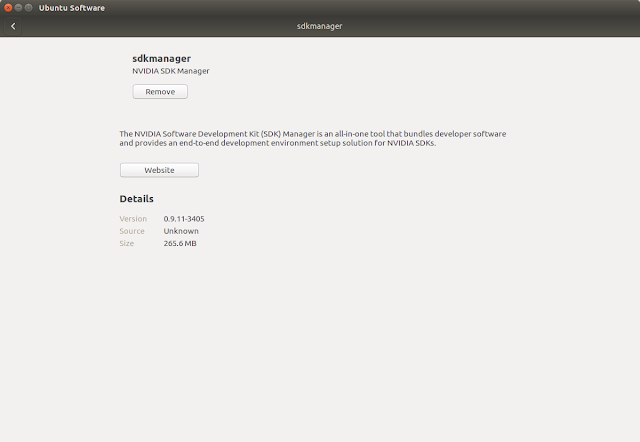
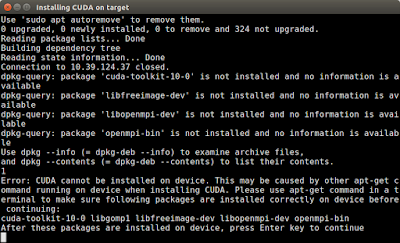
This article shows how to use NVIDIA SDK Manager as using Jetpack series. Step1: Download sdkmanager [1]  Step2: Log in and select your installing options.   Step3: Wait for the download completed.  Step4: Setting connection between device and your PC, and then start flashing your device.  Step5: Follow the instruction shown on the window to complete the system configuration of your device and then login in.  Step6: Continue the rest installation.  *If you have trouble while installing OpenCV like me, try to install libpython2.7-dev on your target manually, and restart the installation process, you should be good to go!  Failed to install libpython2.7 Click the link in the terminal, and install libpython2.7-dev by yourself.   Completed! *Optional: Build OpenCV with CUDA support from source. [2] [3] *Optional: If you are using a carrier board, don't forget to install their driver. ex: [4-5...

Flashing Jetson Xavier

圖片
1. Download Jetpack 4.1 [1] 2. Flashing the Xavier just like flashing TX2 [2] *If fails to install OpenCV or CUDA with the same problem as shown in the following picture Solution: Key in ps aux | egrep -v '(dnsmasq|grep)' | egrep --color=never '(apt|dpkg)' on the Xavier terminal. [3] 3. Check if everything has been installed correctly. [4] *sudo rm /var/lib/dpkg/lock-frontend *apt --fix-broken install *sudo apt-get install XXX 4. Copy the visionworks sample to ~/ and build [5] 5. Change nvpmode to 0 which enables 8 cores and test the samples [6] 6. Maximize the Jetson Xavier performance [7] sudo ${ HOME } /jetson_clocks.sh *If previous projects could not execute normally (report error:  no CUDA-capable device is detected ), it's necessary to renew the NVIDIA driver [8] or manually modify some related scripts. [9] Reference: [1]  https://developer.nvidia.com/embedded/jetpack [2]  JetPack 4.1 - NVIDIA Jetson AGX Xavier [3]  ...

Getting Started with ODROID-XU4

圖片
1. Installing a new OS onto the memory card 2. Boot up the ODROID-XU4 (Be patient....) 3. Delete "lock" file located at /var/lib/apt/lists/ sudo rm -R /var/lib/apt/lists/lock 4. Update & Upgrade Reference: User manual (paper),  odroid-xu4-user-manual.pdf ,  https://wiki.odroid.com/odroid-xu4/odroid-xu4    5. Install Compute Library (version 18.08) Reference:  ComputeLibrary ,  https://www.cnx-software.com/2018/05/13/how-to-get-started-with-opencl-on-odroid-xu4-board-with-arm-mali-t628mp6-gpu/ Keypoint1: While setupping the vender ICD file, command should be: sudo sh -c 'echo "/usr/lib/arm-linux-gnueabihf/mali-egl/libOpenCL.so" > /etc/OpenCL/vendors/armocl.icd' Keypoint2: While building the sources, command should be: scons Werror=1 -j 2 debug=0 neon=1 opencl=1 embed_kernels=1 os=linux arch=armv7a build=native 6. Install OpenCV (The part of "BUILDING ON UBUNTU") Reference:  (1)  https://github.com/cesco345/Open...