發表文章

PIxhawk Pilot Support (PSP) configuration (Linux 16.04 with Matlab 2017b)
圖片
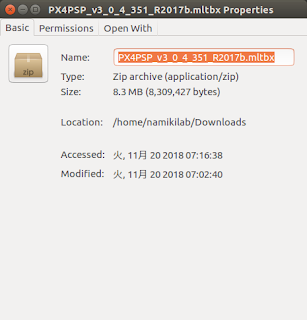
1. Download Pixhawk Support Package and install it [1] (1) Open Matlab (2) Change Matlab file directory to the path of  "PX4PSP_v3......" (3) Click and install 2. Set linux build environment (1) Install gcc-arm-none-eabi v5.4. wget https://github.com/SolinGuo/arm-none-eabi-bash-on-win10-/raw/master/gcc-arm-none-eabi-5_4-2017q2-20170512-linux.tar.bz2 tar -jxf gcc-arm-none-eabi-5_4-2017q2-20170512-linux.tar.bz2 exportline="export PATH=$HOME/gcc-arm-none-eabi-5_4-2017q2/bin:\$PATH" if grep -Fxq "$exportline" ~/.bashrc; then echo " GCC path already set."; else echo $exportline >> ~/.bashrc; fi . ~/.bashrc (2) Install dependencies source ubuntu_sim_common_deps.bash 3. Create a empty folder for storing the firmware ex:  4. Build firmware  (1) Run the PixhawkPSP setup UI from MATLAB PixhawkPSP('/home/namikilab/PX4_simulink') (2) Click "Download Firmware" (3) Select Cmake configuration y...

Matlab 2017b installation (linux)

圖片
1. Create a folder with all installation files (1) MATLABR2017b_Linux_Crack (2) install_key.txt (3) R2017b_glnxa64.iso ->  Download 2. mount R2017b_glnxa64.iso and install (refer to install_ket.txt) sudo mount -t auto -o loop R2017b_glnxa64.iso /temp cd temp sudo ./install 3. After installation, copy licences to specific directories... cd MATLABR2017b_Linux_Crack/ sudo cp  license_standalone.lic /usr/local/MATLAB/R2017b/licenses/  sudo cp  libmwservices.so /usr/local/MATLAB/R2017b/bin/glnxa64/ 4. Unmount sudo umount temp 5. Run cd /usr/local/MATLAB/R2017b/bin sudo ./matlab Reference: 1. ubuntu16.04安装MATLAB R2017b步骤详解(附完整破解文件包)

Matlab Pixhawk Support Package installation (Windows)

圖片
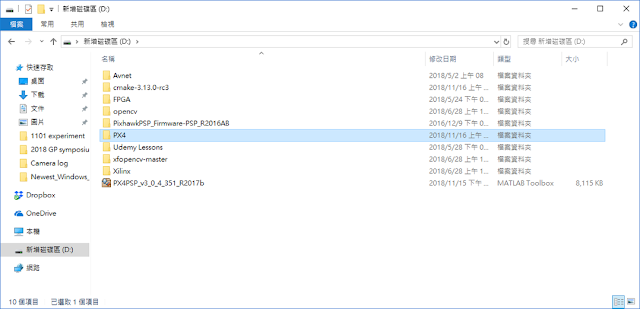
1. Download the pixhawk support package [1] 2. Open MATLAB R2017b and navigate to the file location. 3. Click "PX4PSP_v3_0_4_351_R2017b" and install it 4. Create a folder for firmware download path (ex: D/PX4) 5. Setting bash environment for windows 10 [2]  (1) Active "Windows subsystem for linux" (2) Download and install Ubuntu (3) Using the terminal like in Ubuntu environment ex: 6. Install all necessary toolchain with " windows_bash_nuttx.sh " [3] or using Cygwin Toolchian [4] or [5] (python27 would show in following folder) 7. Key in command " PixhawkPSP(' D:\PX4 ') " in the Matlab 8. Make sure windows 10 bash and python path are correct => Validate paths 9. Download firmware to the folder we specify before and then validate firmware. 10. Selecting cmake configuration [6] 11. Build firmware *Error: make command not found   Solution: [7] T...

Communicate with Intel RTF flight controller using UART interface (1)

1. Make a connection cable between PC and drone [1] Intel RTF (DF13 6pin) PC (TTL to USB) 1 VCC 1 GND (BLACK) 2 UART TX 2 CTS (BROWN) 3 UART RX 3 VCC (RED) 4 I2C CLK 4 UART TX (ORANGE) 5 I2C SDA 5 UART RX (YELLOW) 6 GND 6 RTS (GREEN) 2. git clone C-UART Interface example [2] 3. git clone Mavlink library v2 to path /Home/c_uart_interface_example/mavlink/include/mavlink [3] 4. Check port name on PC side $ ls /dev/ttyUSB* 4. Build project and execute $ cd c_uart_interface_example/ $ make $./mavlink_control -d /dev/ttyUSB0 Future work: Modify the send or receive messages Reference: [1]  PX4 System Console [2]  C-UART Interface Example [3]  mavlink_c_library_v2

Flashing Jetson Xavier

圖片
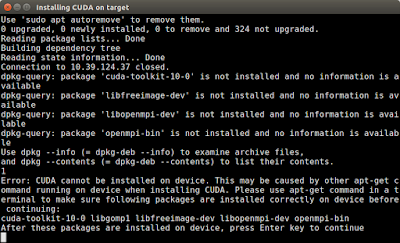
1. Download Jetpack 4.1 [1] 2. Flashing the Xavier just like flashing TX2 [2] *If fails to install OpenCV or CUDA with the same problem as shown in the following picture Solution: Key in ps aux | egrep -v '(dnsmasq|grep)' | egrep --color=never '(apt|dpkg)' on the Xavier terminal. [3] 3. Check if everything has been installed correctly. [4] *sudo rm /var/lib/dpkg/lock-frontend *apt --fix-broken install *sudo apt-get install XXX 4. Copy the visionworks sample to ~/ and build [5] 5. Change nvpmode to 0 which enables 8 cores and test the samples [6] 6. Maximize the Jetson Xavier performance [7] sudo ${ HOME } /jetson_clocks.sh *If previous projects could not execute normally (report error:  no CUDA-capable device is detected ), it's necessary to renew the NVIDIA driver [8] or manually modify some related scripts. [9] Reference: [1]  https://developer.nvidia.com/embedded/jetpack [2]  JetPack 4.1 - NVIDIA Jetson AGX Xavier [3]  ...

Using OpenCL in a nsight developing environment

圖片
1. Installation:  ubuntu14.04安装intel openCL ,  Ubuntu16.04 安装OpenCV&OpenCL ,  Generic ubuntu packages for OpenCL ,  Install Proprietary Nvidia GPU Drivers On Ubuntu 16.04 / 17.10 / 18.04 Check the installation result by keying in command: nvidia-settings  *Do not need to install the OpenCL library for CPU. *GPU driver choose the newest 410.66. *Type " sudo apt-get remove beignet*" while reporting "X server found. dri2 connection failed!" 2. Copy libOpenCL.so present in your cuda toolkit (lib64) to the above location. ex:  sudo cp /usr/local/cuda-9.0/lib64/libOpenCL.so /usr/lib 3. Setting the path of head file. (/usr/include/CL/...) Reference:  OpenCL: 从零开始学习OpenCL开发 ,  OpenCL 教學(一)

IDS USB camera user guide

1. Download "IDS Software Suite 4.90.06 for Linux" and install [1] 2. Start the uEye daemon by typing sudo /etc/init.d/ueyeethdrc start 3. Adjust lens using demo application ( /usr/local/share/ueye/bin ) 4. Download samples [2] 5. Build a project in nsight editor include: /usr/inlude/ueye.h library: /usr/lib/libueye_api.so Reference: [1] https://en.ids-imaging.com/tl_files/downloads/uEye_SDK/readme/ueye-linux-readme-49006_EN.html#installation [2] https://en.ids-imaging.com/programming-examples.html